
How to Use Algo Orders in Origami Tech: Chase, TWAP, and VWAP
Introduction
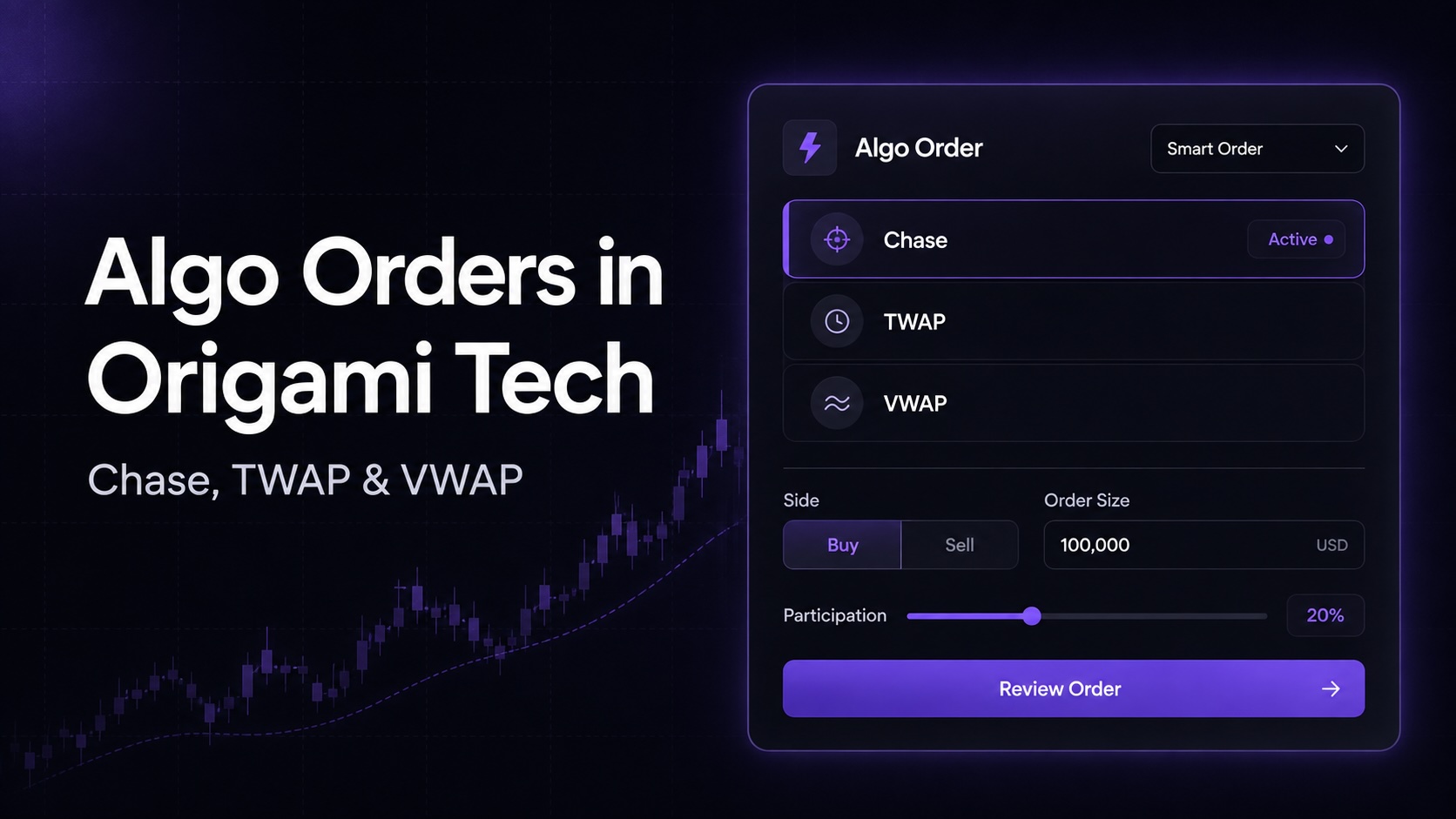
Origami Tech now supports three Algo Orders directly in the crypto trading terminal: Chase, TWAP, and VWAP.
They extend the Manual Orders workflow with execution logic for different market situations. Chase follows the best available price, TWAP distributes an order across a selected period, and VWAP weights execution according to the market volume profile.
The existing crypto trading bot workflow remains available in the Bots section. Algo Orders are useful when you want to execute a specific order directly from the terminal while controlling price, timing, slippage, and execution behavior.

Where to Find Algo Orders in the Origami Tech Crypto Trading Terminal
Open the Manual Orders widget in the Origami Tech terminal.
At the top of the widget, you will see three execution modes:
- Limit
- Market
- Algo
Select Algo.
The Algo menu currently includes:
- Chase, follow best price
- TWAP, spread evenly over time
- VWAP, weight by volume profile
This gives users of the Origami Tech crypto trading bot platform another way to handle execution directly from the same terminal where they monitor charts, balances, positions, bots, and active orders.

Chase Order: Follow the Best Available Price
Chase is designed for situations where you want a limit order to stay close to the current best price as the order book changes.
For a buy order, Chase can follow the best bid. For a sell order, it can follow the best ask.
Instead of checking the order book and manually replacing a limit order every few seconds, you define the execution settings once and let Chase update the working order.
Chase manages one working limit order. As the market moves, Origami Tech can cancel and replace that order according to the selected repricing interval.
Step 1: Select Chase
Open Manual Orders, choose Algo, then select:
Chase, follow best price
Choose the connected exchange account and enter the quantity or notional value you want to execute.
Step 2: Choose Best Price or With Offset
Chase provides two price modes.
Best price keeps the working order at the current best available price on the relevant side of the order book.
With offset lets you apply a percentage offset relative to that best price.
The offset can be useful when you want the order to remain at a defined distance from the top of the book instead of immediately competing at the current best price.

Step 3: Set the Repricing Interval
The Reprice every field determines how often Chase checks the market and updates the order.
For example, with a value of 5 seconds, the algorithm checks the relevant best price every five seconds. When the price has changed, the working limit order can be replaced at the updated level.
A shorter interval keeps the order closer to current order book conditions. The appropriate value depends on the market, liquidity, and your execution goal.
Step 4: Configure Timeout
The Timeout field controls the maximum duration of the algorithm.
With a defined timeout, Chase stops when that time expires.
With No timeout, the algorithm can continue working until the target execution is completed or the user cancels the order.
Step 5: Set Max Slippage
Max slippage defines the maximum tolerated slippage for the execution.
This parameter provides an additional price control when market conditions change while the algorithm is active.
Step 6: Place and Monitor the Chase Order
Review the quantity and settings, then click Buy or Sell.
The Chase order appears in Active Orders, where you can monitor the execution status, filled quantity, order value, time, and strategy.

When Chase Can Be Useful
Chase is particularly useful when the priority is staying close to the top of the order book without manually updating a limit order.
A practical use case is execution on a market with lower liquidity. A trader may want to buy or sell an asset while avoiding a large immediate market order. Chase can keep adjusting the working limit order as the best price changes.
Execution quality still depends on liquidity, volatility, fees, exchange conditions, and the parameters selected by the user.
TWAP Order: Spread Execution Evenly Over Time
TWAP stands for Time Weighted Average Price.
TWAP divides a larger target quantity into smaller executions and distributes them across a selected period.
This can be useful when executing an order at once could create significant market impact, especially in a thinner order book.
Instead of sending the entire quantity immediately, TWAP follows a schedule defined by two main parameters:
Interval, how often the next order is sent.
Duration, how long the complete algorithm runs.
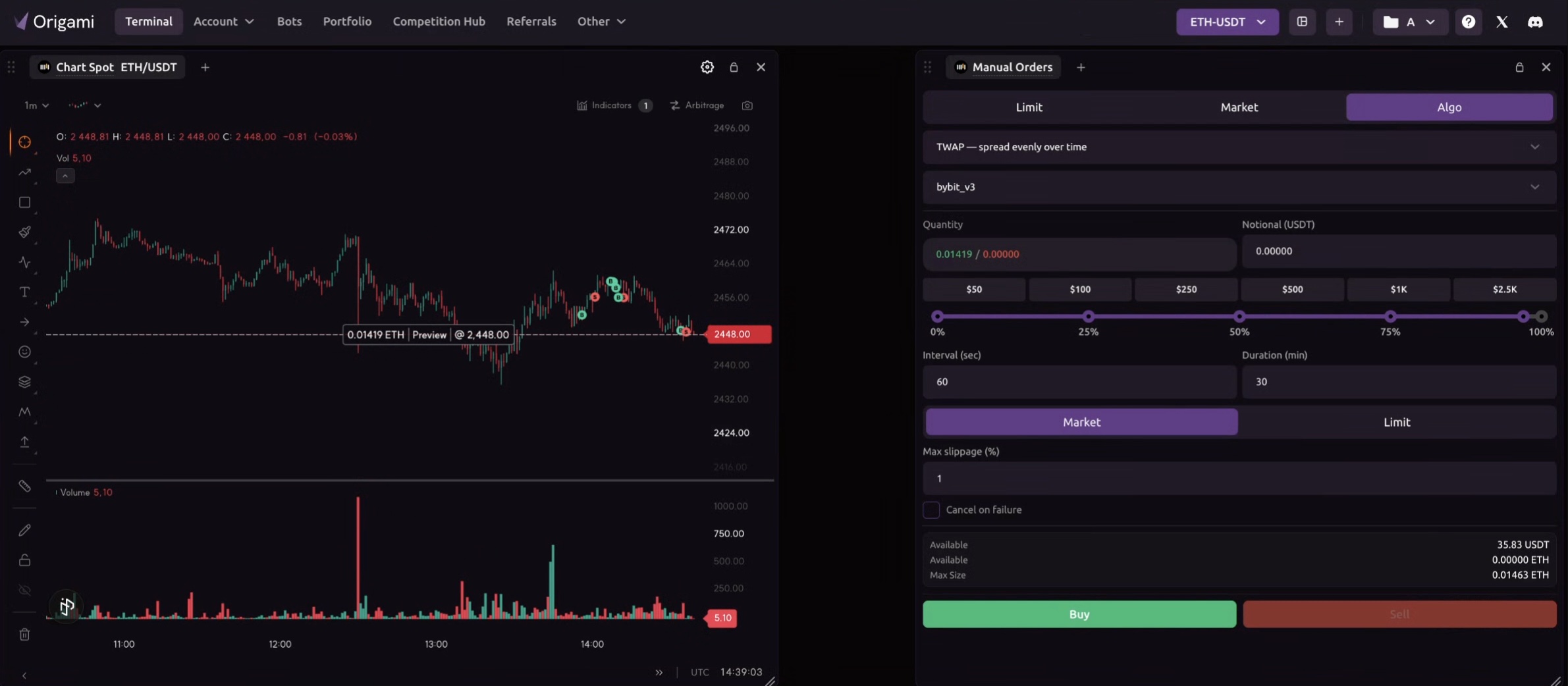
Step 1: Select TWAP
Open Manual Orders, select Algo, then choose:
TWAP, spread evenly over time
Enter the total quantity or notional amount that you want to execute.
Step 2: Set Interval and Duration
Suppose you configure:
Interval: 10 seconds
Duration: 1 minute
Origami Tech divides the target quantity across six scheduled executions.
In the example shown in the interface, a total purchase of 0.01257 ETH over one minute with a ten second interval was divided into 6 orders of approximately 0.00209 ETH each.
This allows the order to enter the market gradually instead of arriving as one larger execution.
Step 3: Choose Market or Limit Execution
TWAP supports both Market and Limit execution.
With Market, each scheduled portion is sent for market execution.
With Limit, the scheduled portions use limit orders.
The choice depends on whether execution speed or price control has higher priority for the specific order.
Step 4: Configure Max Slippage
Use Max slippage to define the tolerated slippage for the algorithm.
The confirmation screen shows the selected execution type and maximum slippage before the TWAP order is submitted.
Step 5: Decide How Failures Should Be Handled
TWAP includes a Cancel on failure option.
When Cancel on failure is enabled, a failed execution can stop the remaining TWAP schedule.
When the option is disabled, the algorithm continues with the next scheduled executions even when an earlier portion fails or receives an incomplete fill.
This setting matters when the exact target quantity is important. Continuing after an incomplete order can result in a final executed amount below the original target.
Step 6: Review the TWAP Order Before Confirmation
After clicking Buy or Sell, Origami Tech displays a confirmation window.
The confirmation includes:
- Total quantity
- Number and approximate size of scheduled orders
- Execution interval
- Execution method
- Maximum slippage
- Reference price
- Scheduled completion time
Review these values and click Confirm to start the algorithm.

Step 7: Track TWAP Execution in Active Orders
After confirmation, TWAP appears in the Active Orders table.
The row updates as additional portions are executed. You can track the filled quantity and order value while the algorithm runs.
Controls for managing the active algorithm are available directly from this section, including pausing and cancelling the order. A paused order can subsequently be resumed.

When TWAP Can Be Useful
TWAP is useful when a trader wants to distribute a larger order across time.
Consider a less liquid market where immediately selling a large position could consume several levels of the order book and move the execution price. A TWAP schedule can divide that volume into smaller orders executed over several minutes or a longer period.
This approach gives the trader direct control over the execution interval, total duration, order type, and slippage parameters.
VWAP Order: Weight Execution by Market Volume
VWAP stands for Volume Weighted Average Price.
The Origami Tech interface describes this mode as:
VWAP, weight by volume profile
Like TWAP, VWAP is designed for executing a target quantity through multiple smaller executions.
The difference is the allocation logic. TWAP distributes execution evenly according to time. VWAP uses the market volume profile to determine the weighting of execution.
This makes VWAP relevant when the trader wants execution to account for how market activity is distributed rather than using equal time based slices.
To use VWAP:
- Open Manual Orders
- Select Algo
- Choose VWAP, weight by volume profile
- Set the target quantity and available execution parameters
- Review the order
- Confirm execution
- Monitor it through Active Orders
How to Manage Algo Orders
Running Algo Orders can be monitored from the Active Orders section of the terminal.
The table provides execution information including:
- Exchange
- Account
- Symbol
- Order type
- Direction
- Filled price
- Filled quantity
- Order value
- Order time
- Strategy
Algo Orders are identified by their strategy, such as Chase or TWAP, which makes them easy to distinguish from regular manual orders.
Active algorithm controls allow the trader to manage execution while it is running.

Chase vs TWAP vs VWAP: Which Algo Order Should You Use?
- Choose Chase when your priority is keeping a working limit order close to the current best bid or ask as the order book moves.
- Choose TWAP when you want to divide a target quantity into equal scheduled executions over a defined period.
- Choose VWAP when you want the execution weighting to reflect the market volume profile.
Each algorithm solves a different execution problem. The appropriate choice depends on liquidity, order size, volatility, urgency, and the amount of price impact you are prepared to accept.
Algo Orders and Crypto Trading Bots in Origami Tech
Algo Orders expand the execution tools available inside the Origami Tech crypto trading terminal.
They can also complement existing crypto bot trading strategies. A user may have automated crypto trading bots running while using Chase, TWAP, or VWAP for a separate position that requires direct execution control.
For example, after running a high volume strategy on a less liquid asset, a trader may need to reduce the resulting position gradually. TWAP can distribute the exit over time, while Chase can manage a limit order around the best available price.
Bots, presets, grids, custom strategies, and Algo Orders can therefore serve different parts of the same crypto trading workflow.
Start Using Algo Orders in Origami Tech
Open the Origami Tech terminal, go to Manual Orders, and select Algo to access Chase, TWAP, and VWAP.
Start by defining the execution objective first: follow the best price, distribute an order over time, or weight execution according to market volume. Then configure the relevant price, timing, and slippage controls before confirming the order.
As with any crypto trading execution method, results depend on market liquidity, volatility, exchange conditions, fees, and the parameters selected for the order.
You may also like








Trade Smarter with Origami Tech
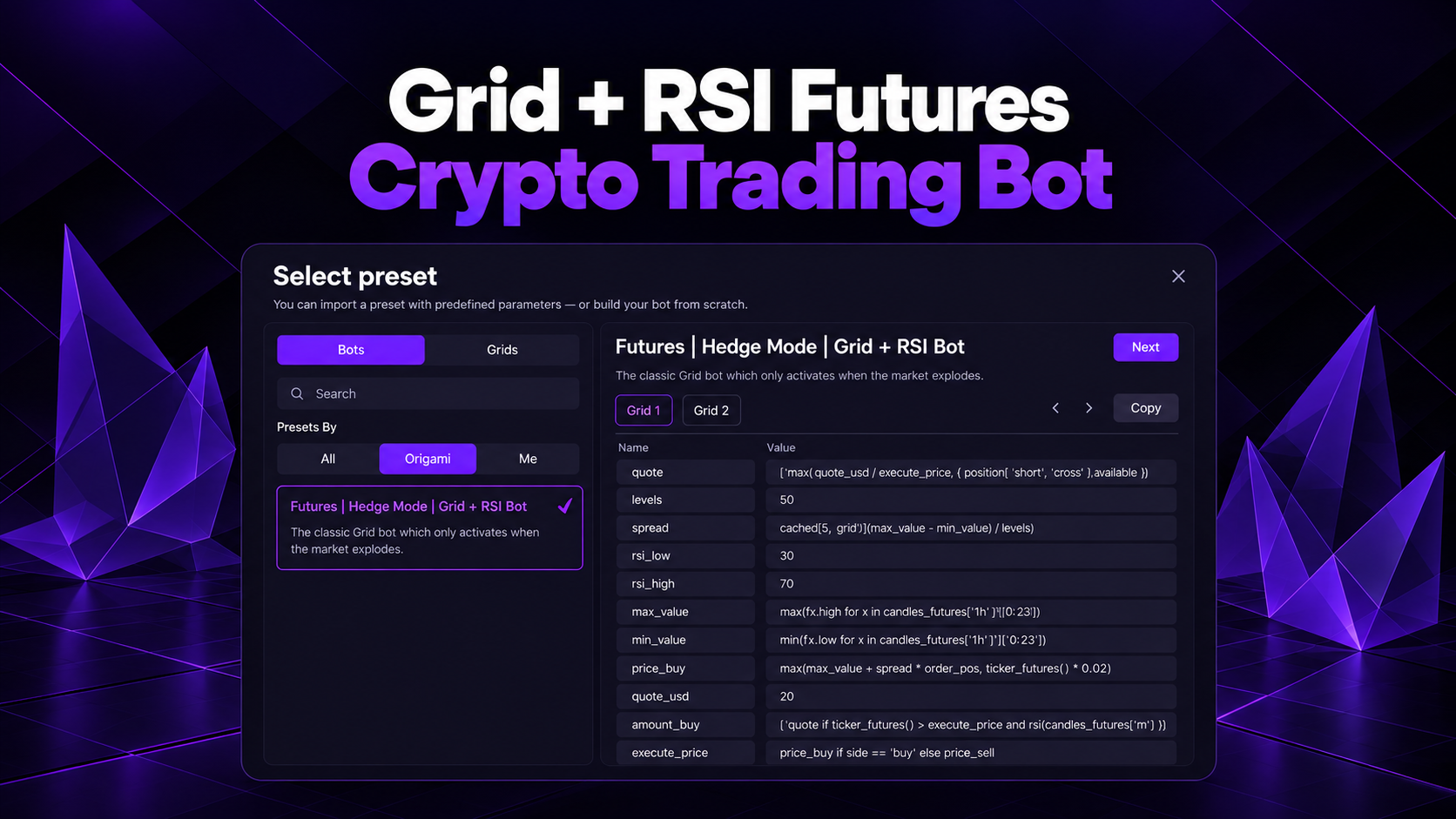
Take your crypto trading to the next level with our powerful automated trading terminal. Maximize profits, minimize risks, and stay ahead of the market 24/7.